How to Connect Figma MCP to Your AI Coding Tool
Figma MCP lets Claude Code, Cursor, and VS Code read your Figma files directly. Here's exactly what you need and how to set it up — no fluff.
Null Author
Author
How to Connect Figma MCP to Your AI Coding Tool
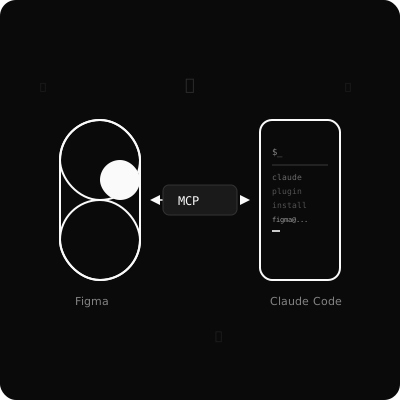
Figma released their MCP server a few months ago and it's genuinely useful — your AI agent can read your Figma files, pull component properties, and implement designs without you copy-pasting hex values. Here's how to actually set it up.
What You Need First
Figma account — the MCP server works on all plans including Free. The remote server (recommended) is free during beta. At some point Figma will charge for it, but not yet.
Node.js — you need it installed to run most of these tools.
An AI coding tool — Claude Code, Cursor, VS Code with Copilot, or Gemini CLI. Pick whichever you already use.
That's it. No special Figma plan required right now.
Method 1: Claude Code
The fastest setup. Figma has an official plugin for Claude Code.
Install:
claude plugin install figma@claude-plugins-officialConnect:
Run /plugin in Claude Code → go to the Installed tab → select Figma → press Enter. A browser window opens, click Allow access.
Run /plugin again — Figma should show as connected.
Use it:
Implement this component: https://www.figma.com/design/YOUR_FILE_ID?node-id=...
Claude reads the design and writes the code. Colors, spacing, font sizes — all pulled directly from Figma.
Method 2: Cursor
Install:
Open the command palette (Cmd+Shift+P) → type "Open chat" → in the chat input type:
/add-plugin figma
Click Add Plugin and go through the auth flow.
Verify:
Go to Cursor Settings → Tools & MCP → Figma should appear under installed servers. Click Connect if it's not already active.
Method 3: VS Code
VS Code doesn't have a one-click plugin, but you can add the remote MCP server manually.
Open your .vscode/settings.json (or create it) and add:
{
  "github.copilot.chat.mcp.enabled": true,
  "mcp": {
    "servers": {
      "figma": {
        "type": "sse",
        "url": "https://mcp.figma.com/sse"
      }
    }
  }
}
Restart VS Code. A prompt should appear to authenticate with Figma — click Allow access.
Note: This requires GitHub Copilot or another MCP-compatible extension in VS Code.
Method 4: Gemini CLI
gemini extensions install https://github.com/figma/mcp-server-guideThen authenticate inside the CLI:
/mcp auth figma
Method 5: Any Tool via npx (Manual)
If your tool supports custom MCP servers, you can run the Figma MCP server locally:
npx @figma/mcp-serverThen add it to your tool's MCP config as a local server on http://localhost:3845.
This works with any MCP-compatible client. You'll need a Figma Personal Access Token — go to Figma → Account Settings → Personal Access Tokens → create one with read permissions.
Set it as an environment variable:
export FIGMA_ACCESS_TOKEN=your_token_hereWhat Actually Works Well
Once connected, the most useful thing is just pasting a Figma URL and asking for an implementation:
Build this as a React component, use Tailwind:
https://www.figma.com/design/abc123?node-id=5:23
The agent reads the node properties — exact dimensions, colors, font styles, padding — and generates matching code. It's not magic, but it removes 80% of the tedious part of design handoff.
If your Figma file has design variables (the newer Figma variables system for colors, spacing, etc.), the agent will use those names in the code instead of hardcoded values. Worth setting up if you haven't already.
What Doesn't Work Well Yet
- Writing back to Figma is beta and inconsistent. Simple frames work, complex components don't always
- Auto layout edge cases — deeply nested responsive layouts sometimes generate wrong CSS
- No Figma variables in your file = less useful output. The agent is only as good as your file's structure
One More Thing: Code Connect
If you use a design system, look into Figma Code Connect. It lets you map Figma components to your actual codebase, so when the AI sees a Button component in Figma, it generates <Button variant="primary"> using your real component — not a div with inline styles.
Setup is a separate topic, but worth knowing it exists.
Docs: